

How to transfer SMS from Windows Mobile to PC
- How to install Godsw Mobile SMS Transfer to Windows Mobile Phone?
- How to Backup and transfer the SMS from mobile to PC
- How to import SMS to desktop computer and view sms on PC
- How to edit and delete sms on desktop computer
- How to restore SMS from pc to mobile
-
How to install Godsw Mobile SMS Transfer to Windows Mobile Phone?
Step 1: Download GodswMobile SMS Transfer to your pc;
Step 2: Unzip (decompress) the file you downloaded just now, and copy the installation file "GodswMobileSMSTransferSetup.CAB" to your mobile device. You may need to connect your device to a desktop computer or laptop using ActiveSync. You can also transfer the file using a memory card.
Important Note: Please do not open the GodswMobileSMSTransferSetup.CAB file, just copy it to your mobile and click to install. If you do not know how to copy file between PC and Mobile, please see this guide: - For Windows XP:How to transfer files between Windows XP and Windows Mobile
- For Windows 7/Vista:How to transfer files between Windows 7/Vista and Windows Mobile
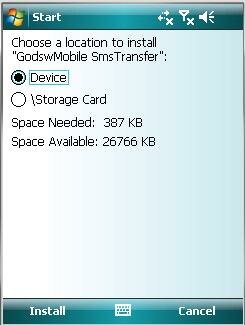
Step 3: On your device, navigate to the location of the CAB file using File Explorer. Click on the CAB file (displayed as the following screenshot) and click "Install" to begin the installation.
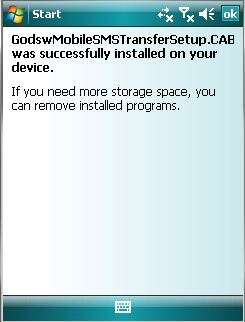
Step 4:As the screenshot below, the installation completes. Select "OK" to finish.
-
How to backup and transfer the SMS from mobile to PC
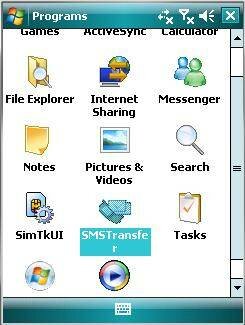
Step 1: Click "start" and then select programs. You will see the follow screen
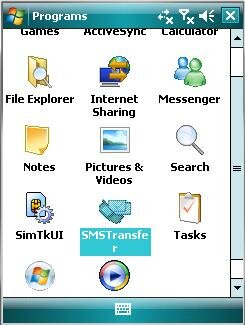
Step 2: Select the “SMSTransfer” in your mobile programs list to run it. You will see the main windows of GodswMobile SMS Transfer as the following screenshot
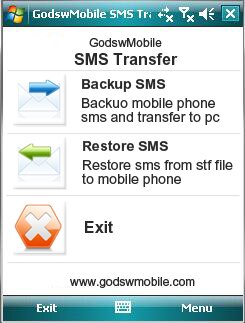
Step 3:Click on "Backup SMS" in the main interface to backup you SMS messages in mobile phone. You will see the follow screenshot.
Note: The software could backup all the messages including Draft, Inbox, Outbox, Sent Items, and Deleted Items.
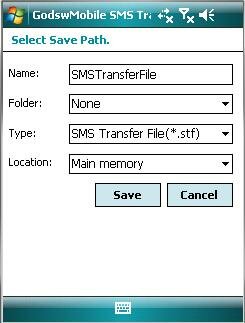
Step 4:Choose the file name, file format (backup as txt file or stf file) and location (The default setting is OK) for your SMS file and click on "Save" to start to backup process. You will see the follow screenshot.
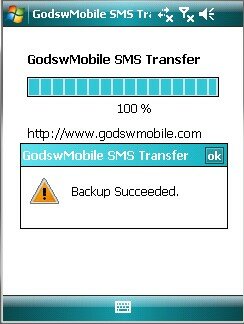
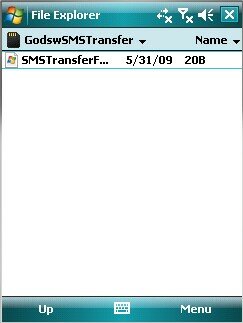
Step 5: After backup completes, all the SMS messages has been backup in a file on your phone. You can save it in your memory card or transfer it to your computer easily by ActiveSync.
-
How to import SMS to desktop computer and view sms on PC
Step 1: Transfer the SMS backup file from your mobile phone to computer by ActiveSync first. Then run the "SMSTransferManager.exe " from the zip file folder on your computer. You will see the sms manager main window as below.
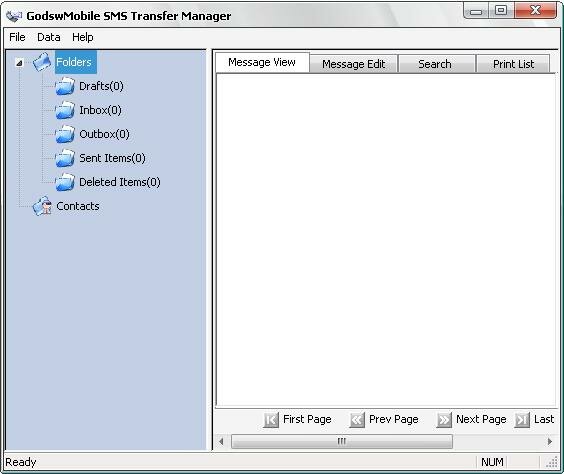
Step 2:Click “File”—>”Import” and select the backup file to import your sms message to the SMS Transfer Manager.
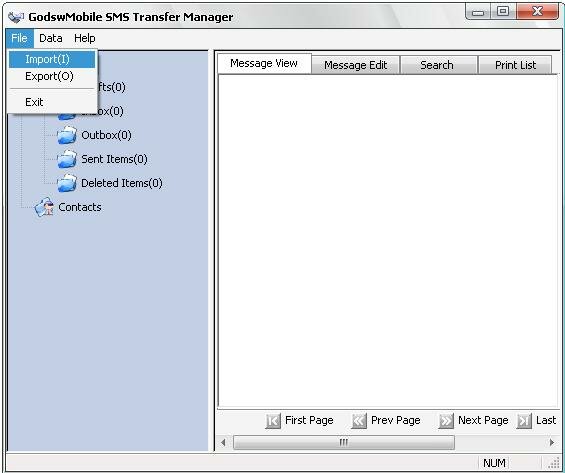
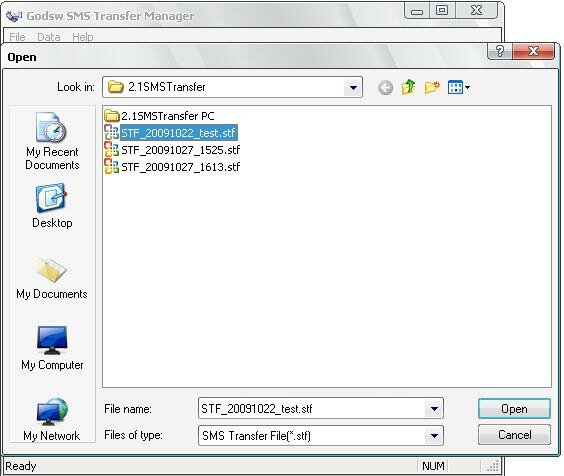
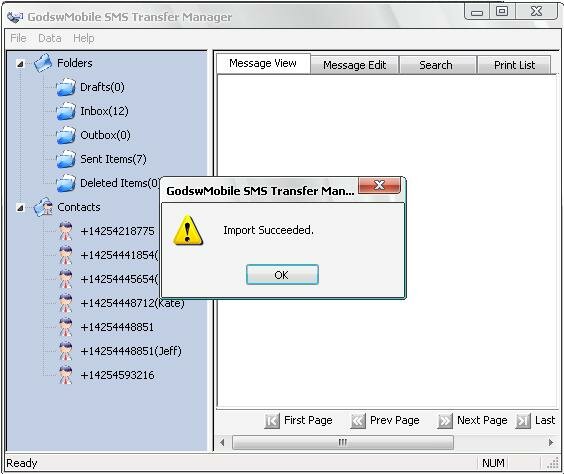
Import Finish - Now, you can see the sms in your pc as just in your mobile phone.
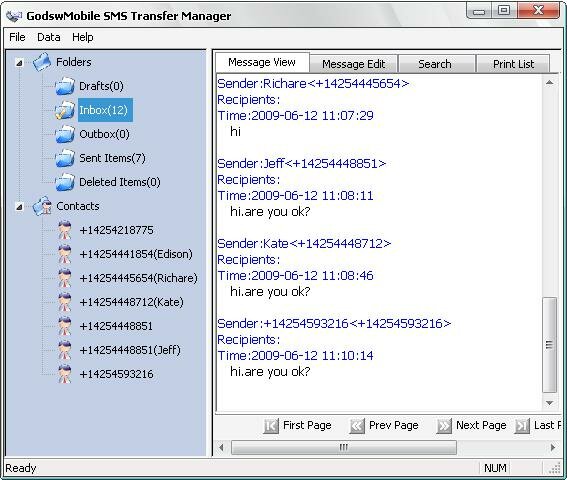
Also, you could select a certain contact to view all the sms chat with him (her)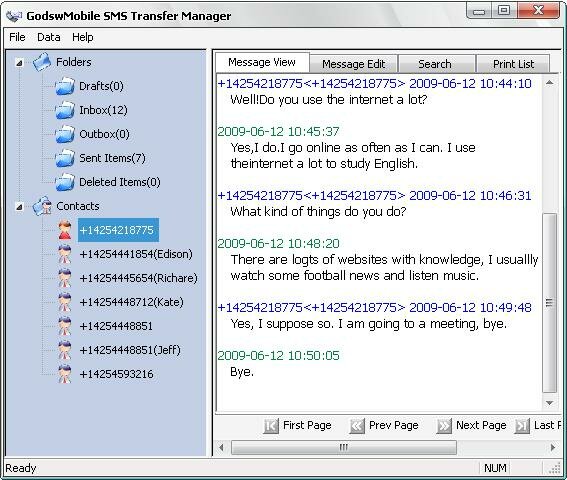
-
How to restore SMS from pc to mobile
Step 1:Click on "SMS Transfer" in programs list to run it.
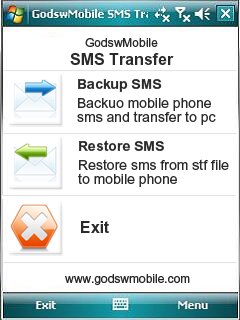
Step 2: Click on "Restore Messages" in the main interface to restore SMS messages into mobile phone.
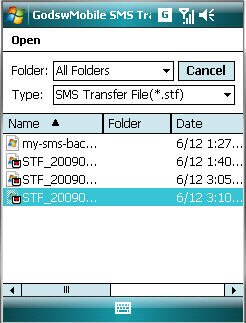
Step 3: Select and click on the stf file to be restored.
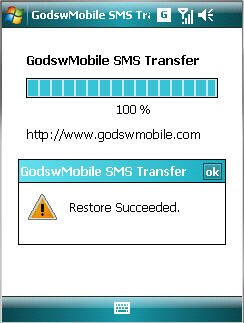
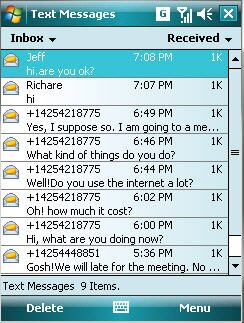
Restore Success!
Notice : We recommend you free download GodswMobile SMS Transfer to have a try before you buy. Please note GodswMobile SMS Transfer supports almost all phones on windows mobile system, currently EXCLUDE Palm Treo 750.
If you have other technique question, please feel free to contact us at :




| Price: | USD 19.00 |
| Current version: | 2.5 |
| Release date: |
May 20, 2011 |
| Download size: | 944 KB |

Platforms:
Windows Mobile 5
Windows Mobile 6 /6.1/6.5
 30 days money-back.
No questions asked.
No risk, full price refund.
Awards